How to configure "Connect using SSH" for Linux virtual machines with vRA 7
With vRealize Automation you can configure an Action (Day 2 Operation) named "Connect using SSH". This blog article describes how to set this up. First you…
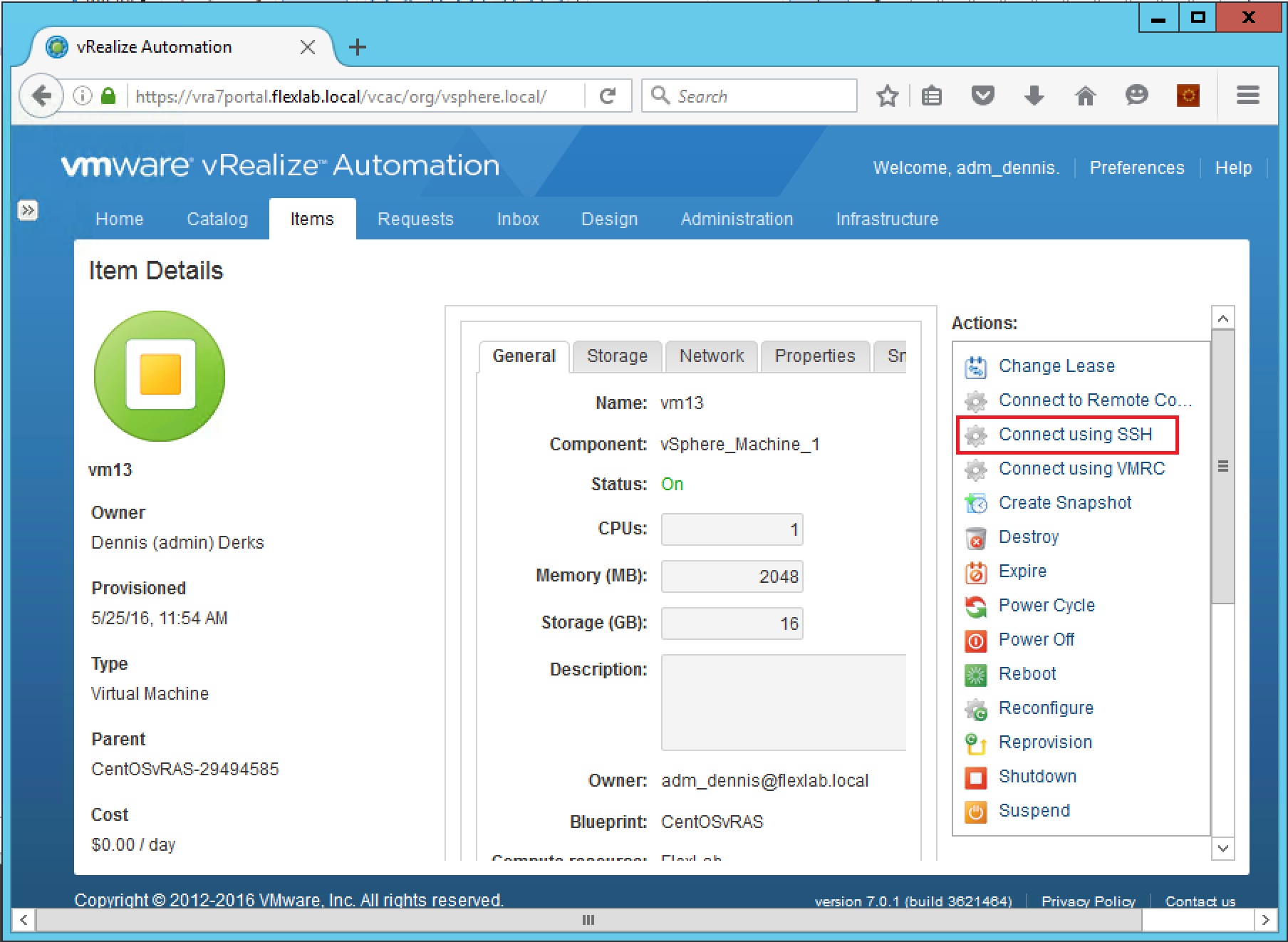
With vRealize Automation you can configure an Action (Day 2 Operation) named “Connect using SSH”. This blog article describes how to set this up.
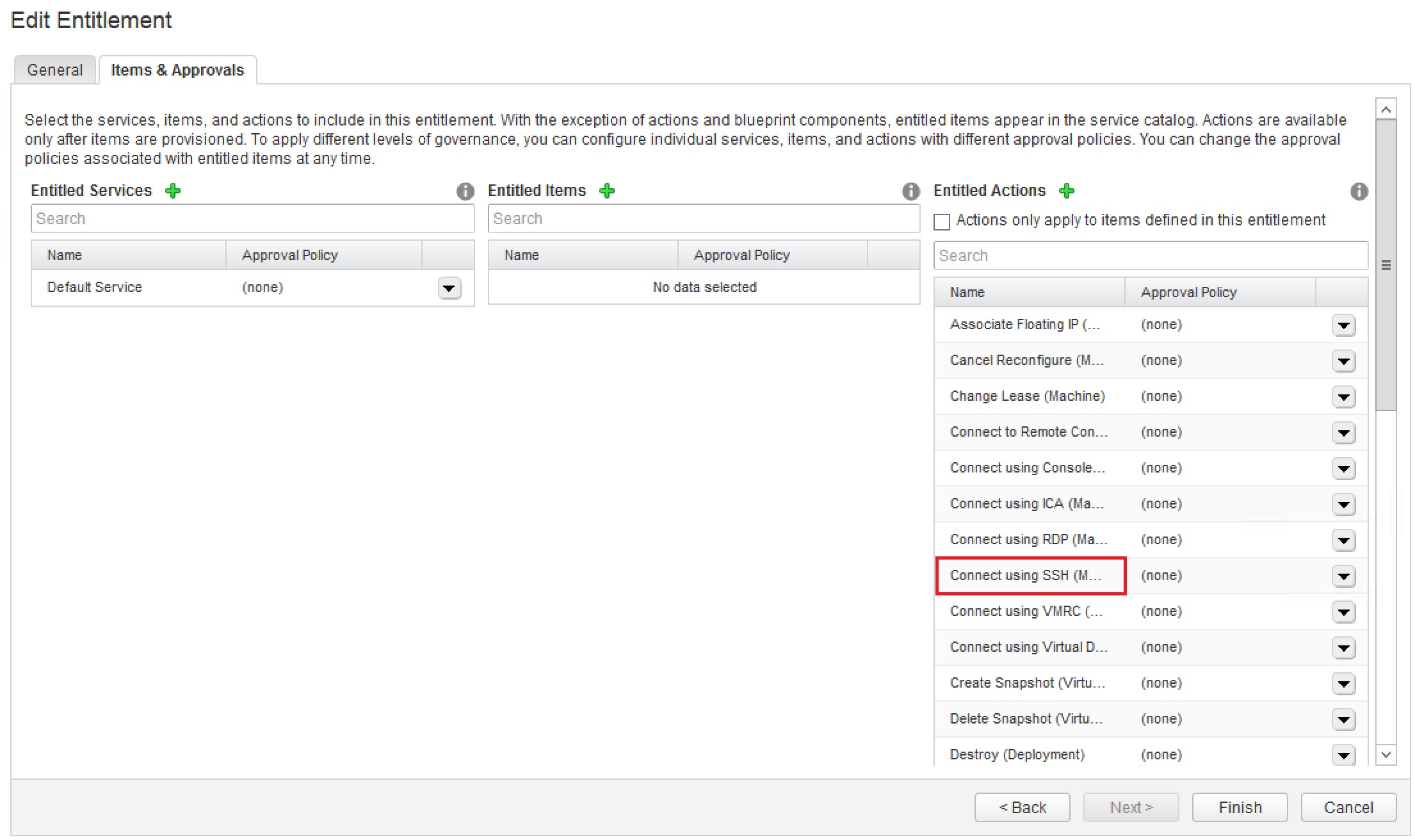
First you need to include the action “Connect using SSH” into your entitlement.
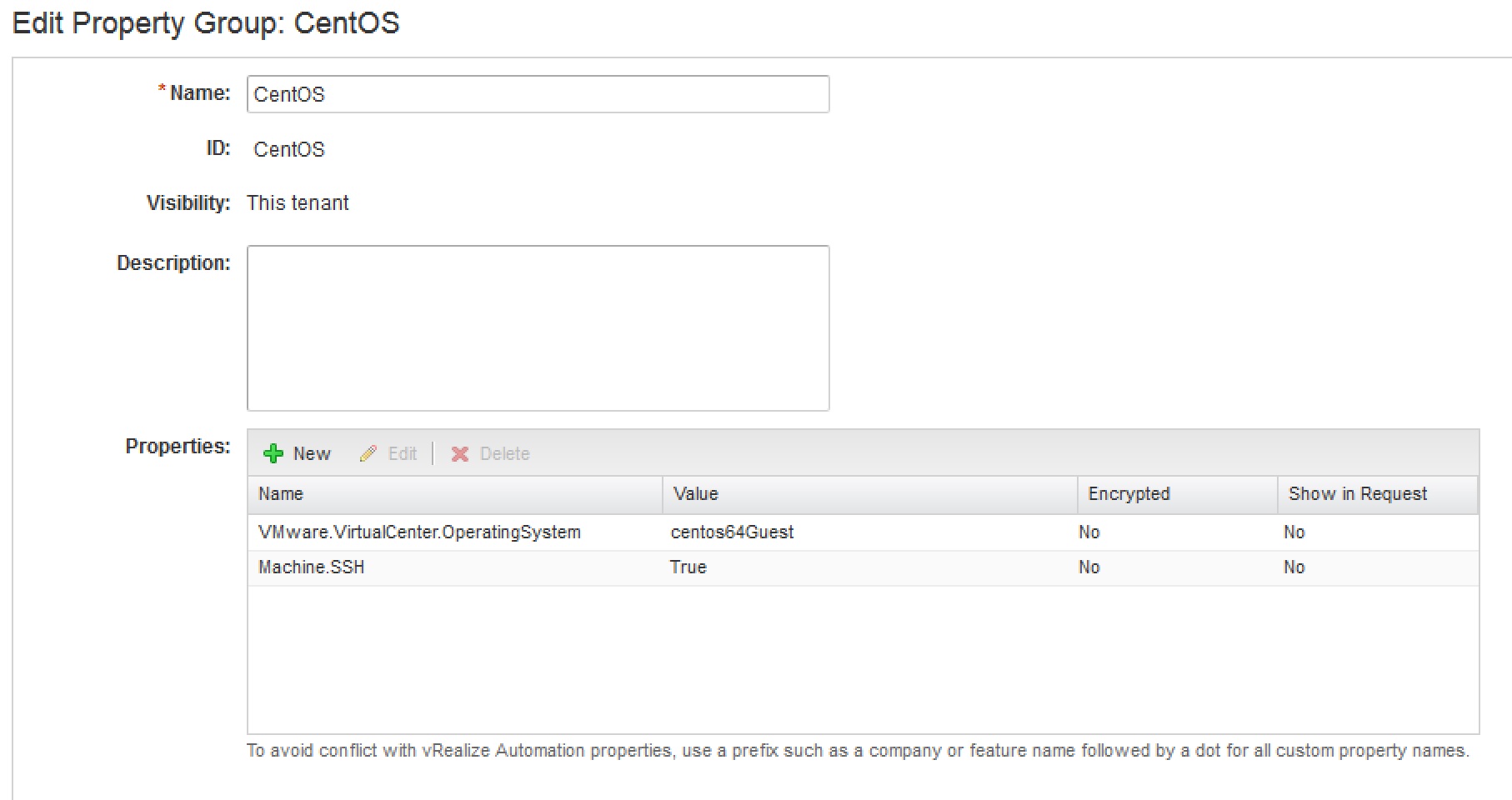
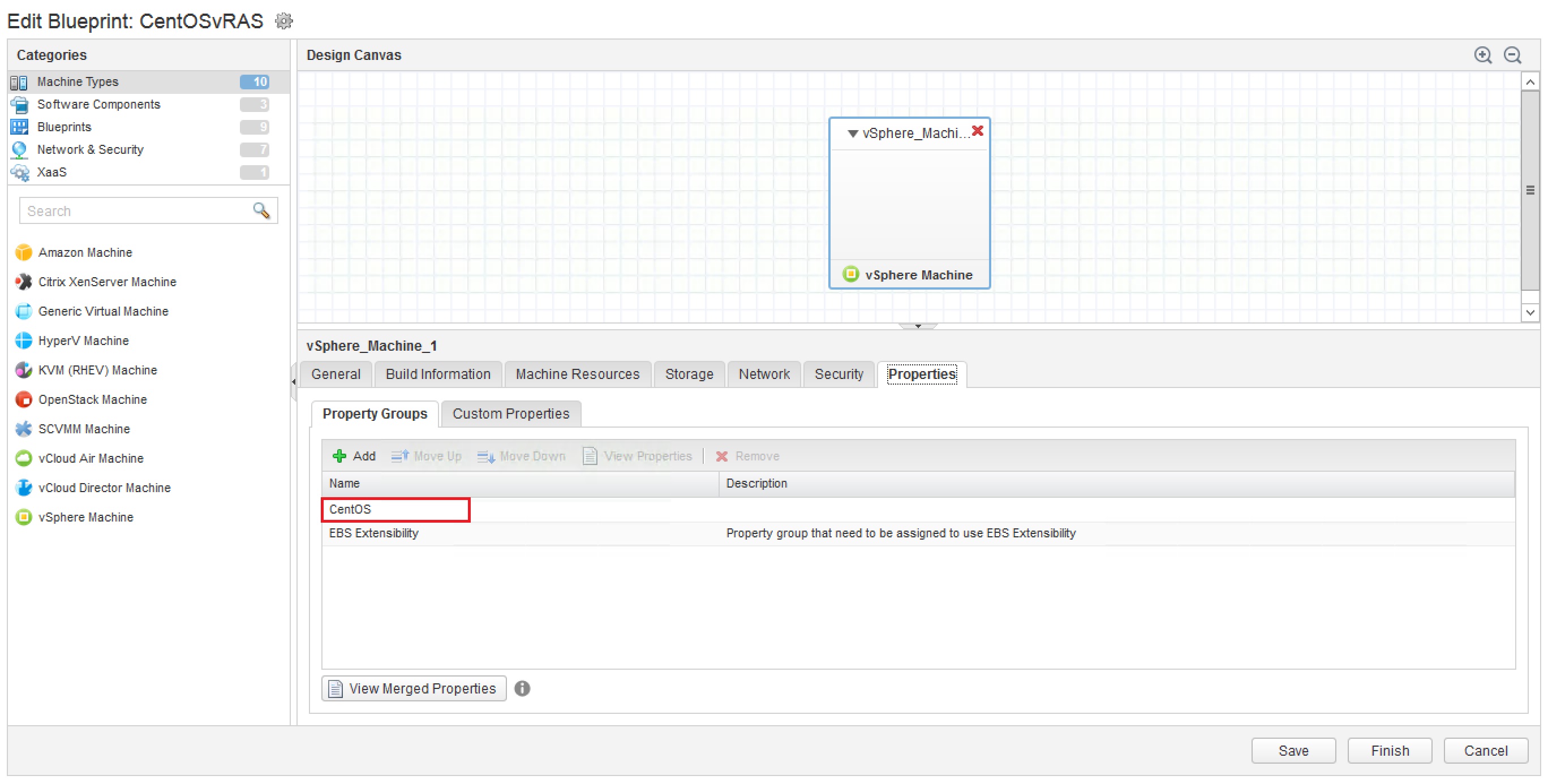
Next you need to assign the following custom properties to your blueprint. VMware.VirtualCenter.OperatingSystem = centos64Guest Machine.SSH = True In my example I am going to use CentOS 6.3. The value of custom property VMware.VirtualCenter.OperatingSystem must be the corresponding VirtualMachineGuestOsIdentifier which is in this scenario centos64Guest I am using a Property Group named CentOS for this, which contains the required custom properties. This Property Group is added to my blueprint.
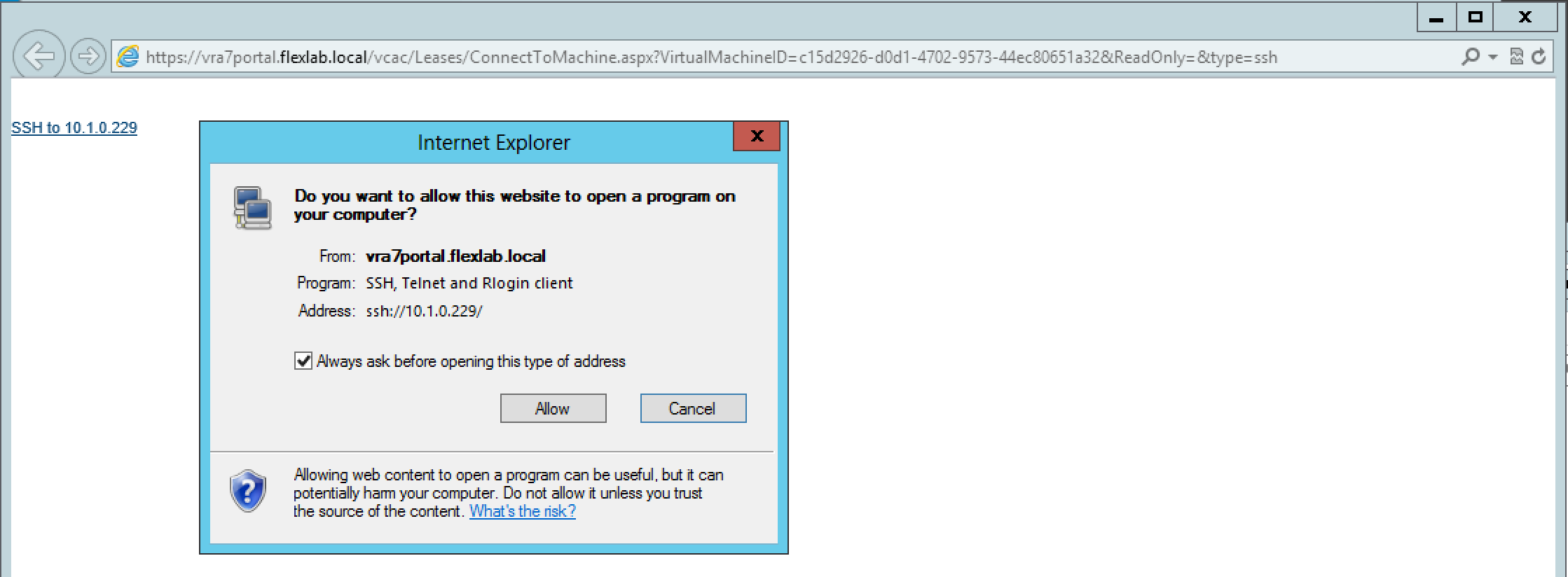
This should be all and we can test this functionality now. However if your web browser is now aware of SSH you will end up in the following situation.
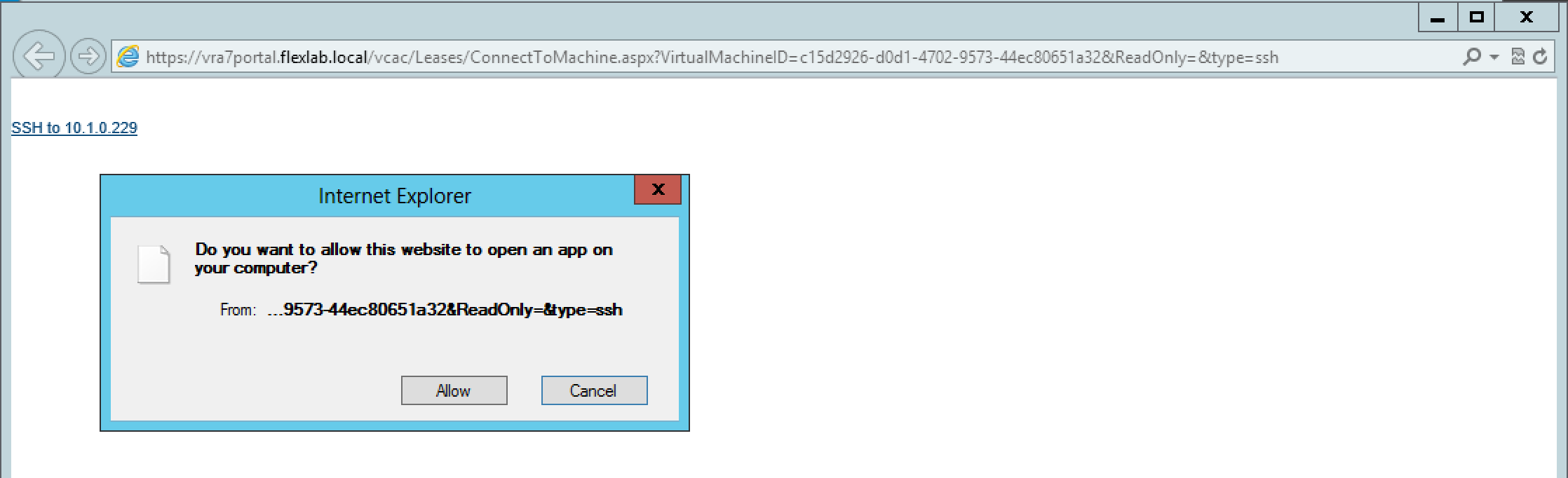
To fix this we have a couple of options. Fix 1: Using a web browser addon like FireSSH https://addons.mozilla.org/en-US/firefox/addon/firessh/ After installing FireSSH for my FireFox web browser you will see the following when you click on the vRA Action “Connect using SSH”.
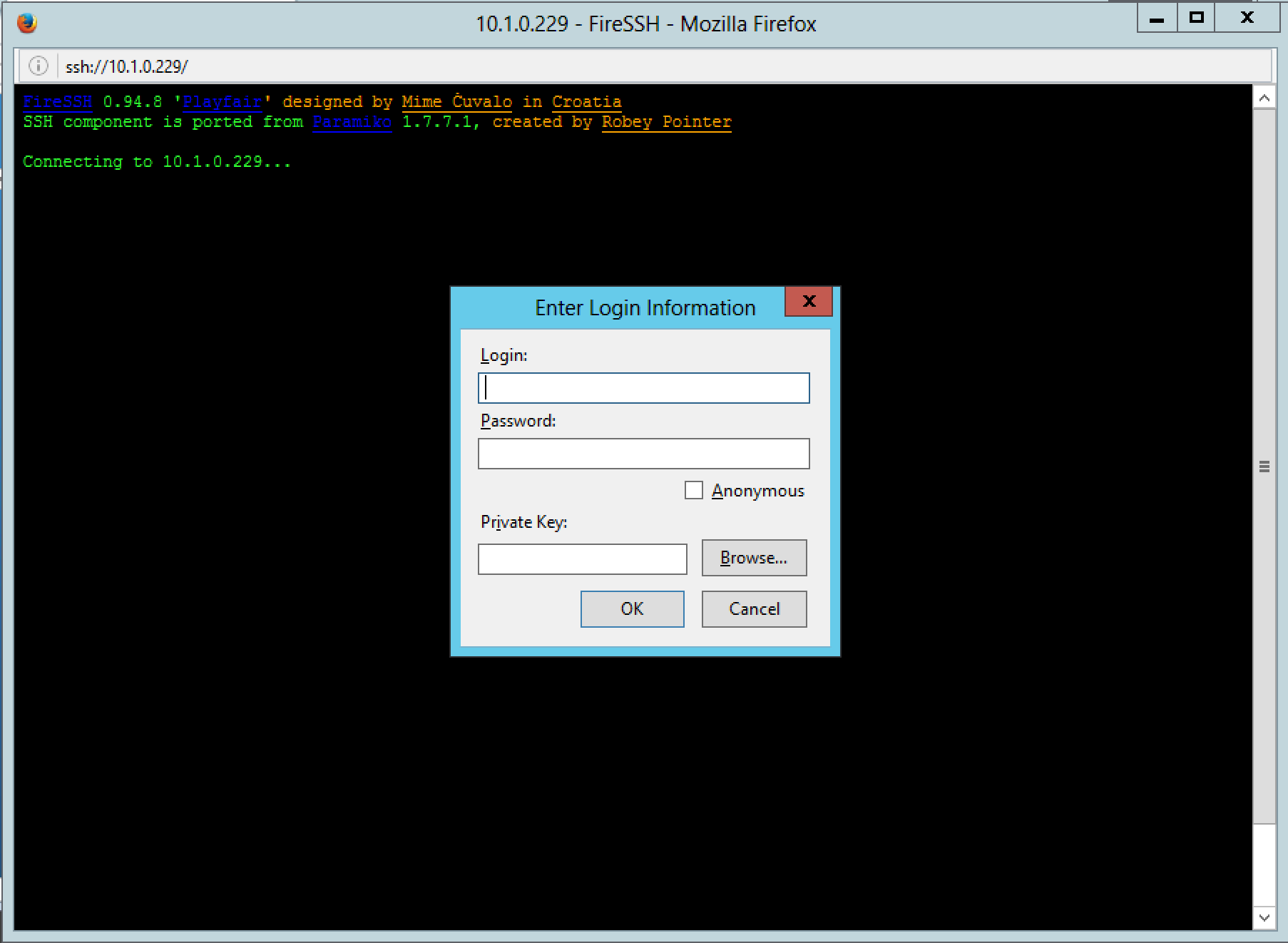
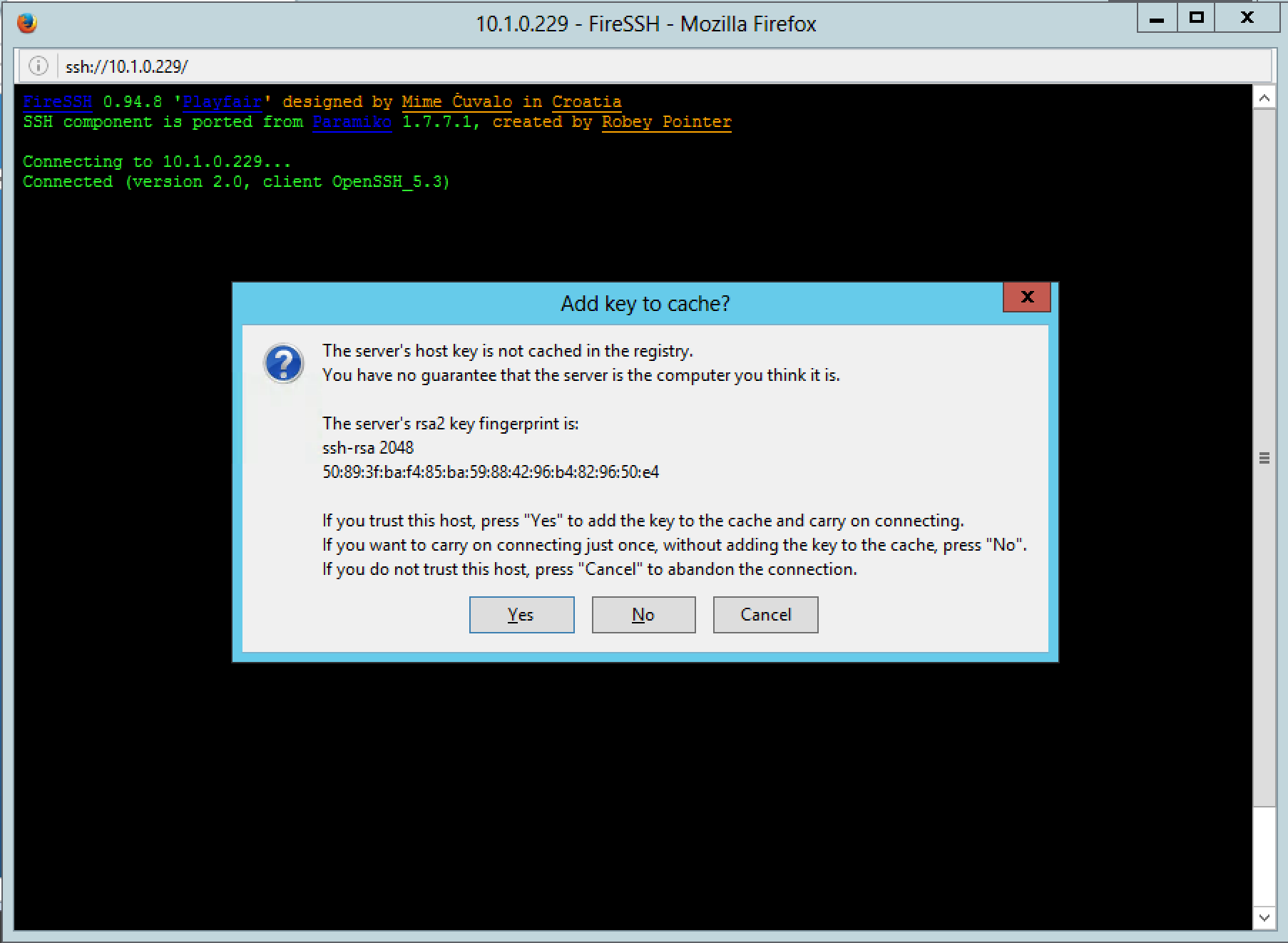
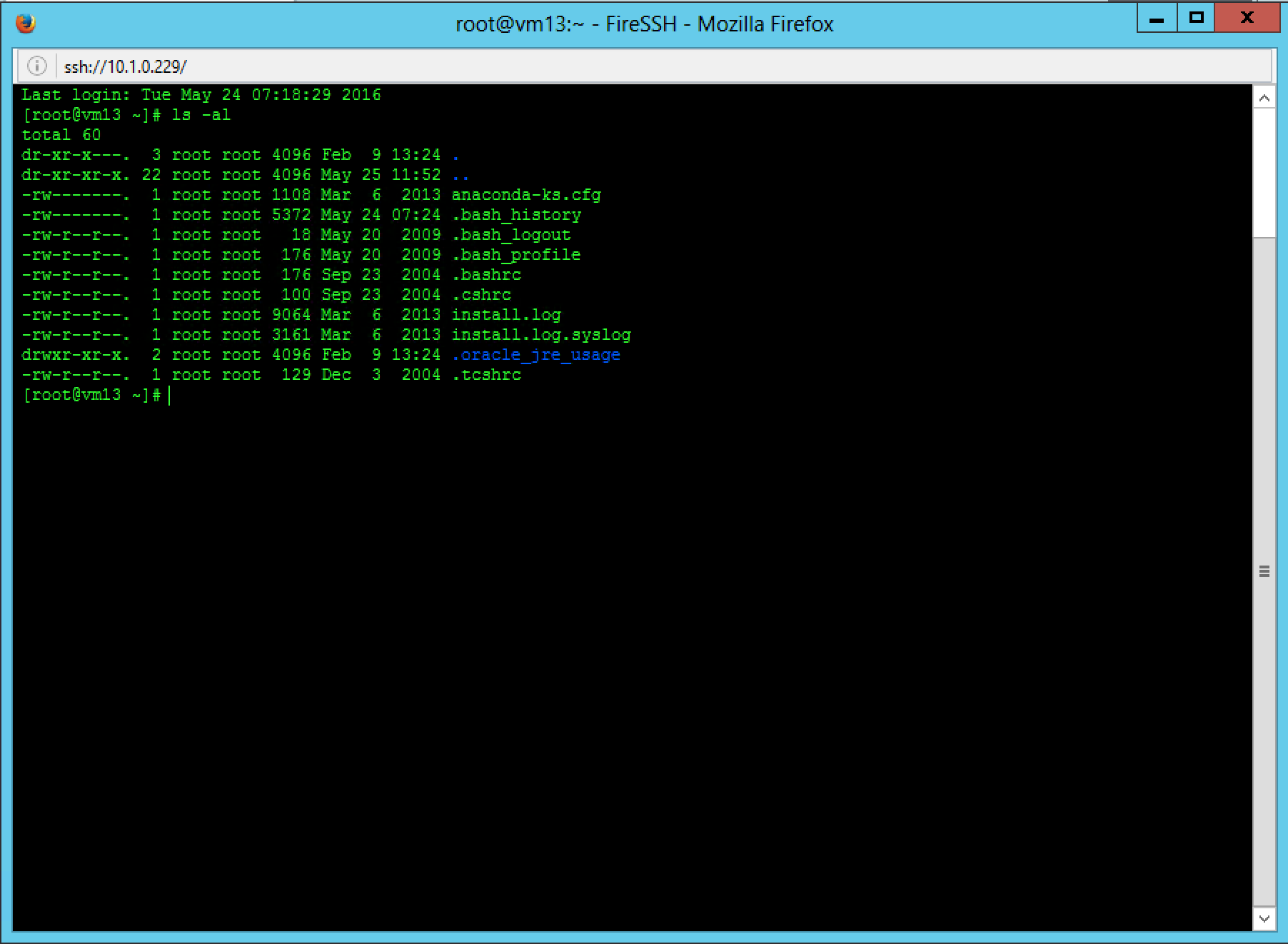
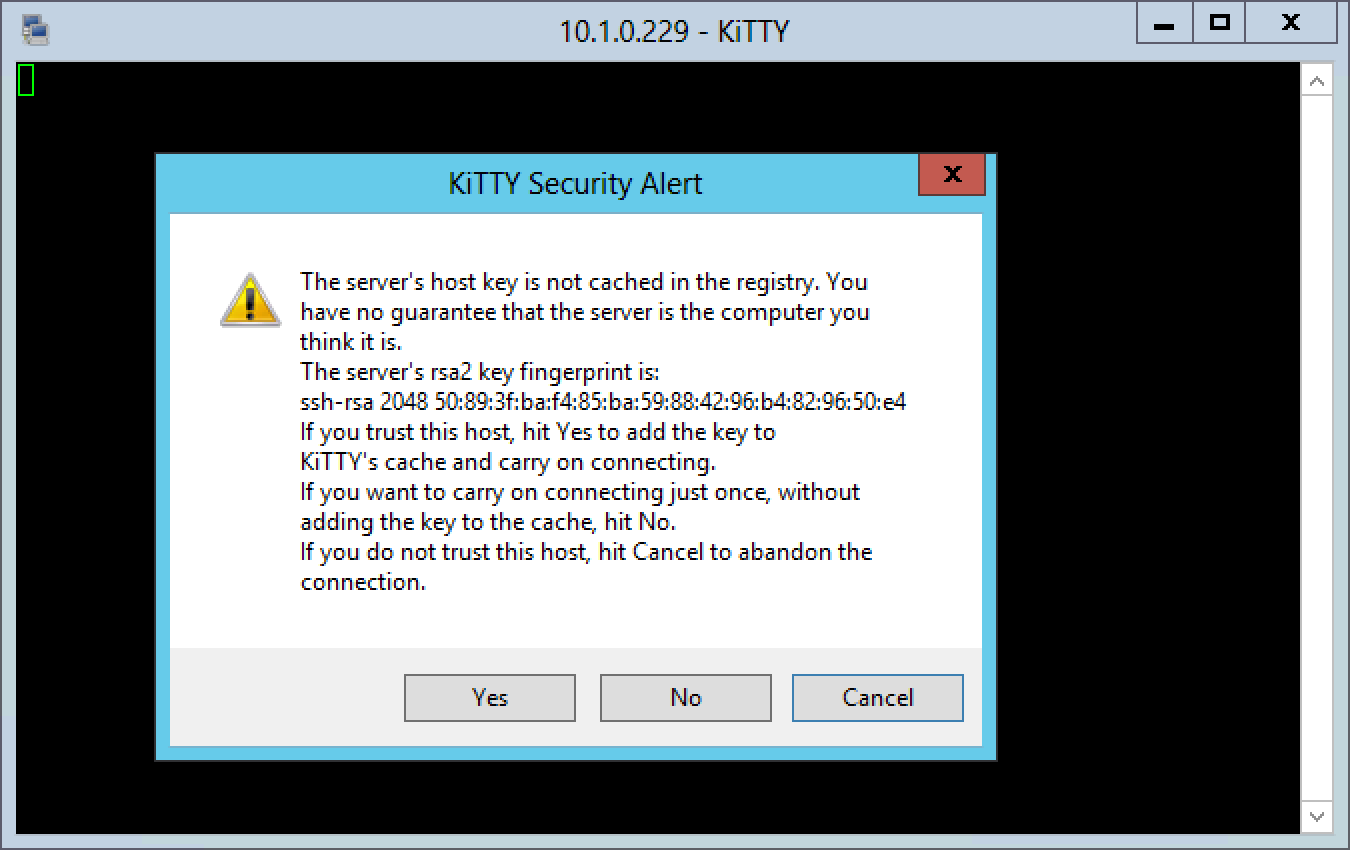
Fix 2: Using a SSH client like KiTTY https://www.9bis.net/kitty/ https://www.fosshub.com/KiTTY.html After downloading KiTTY you need to register it as a sshhandler like the below screenshot.

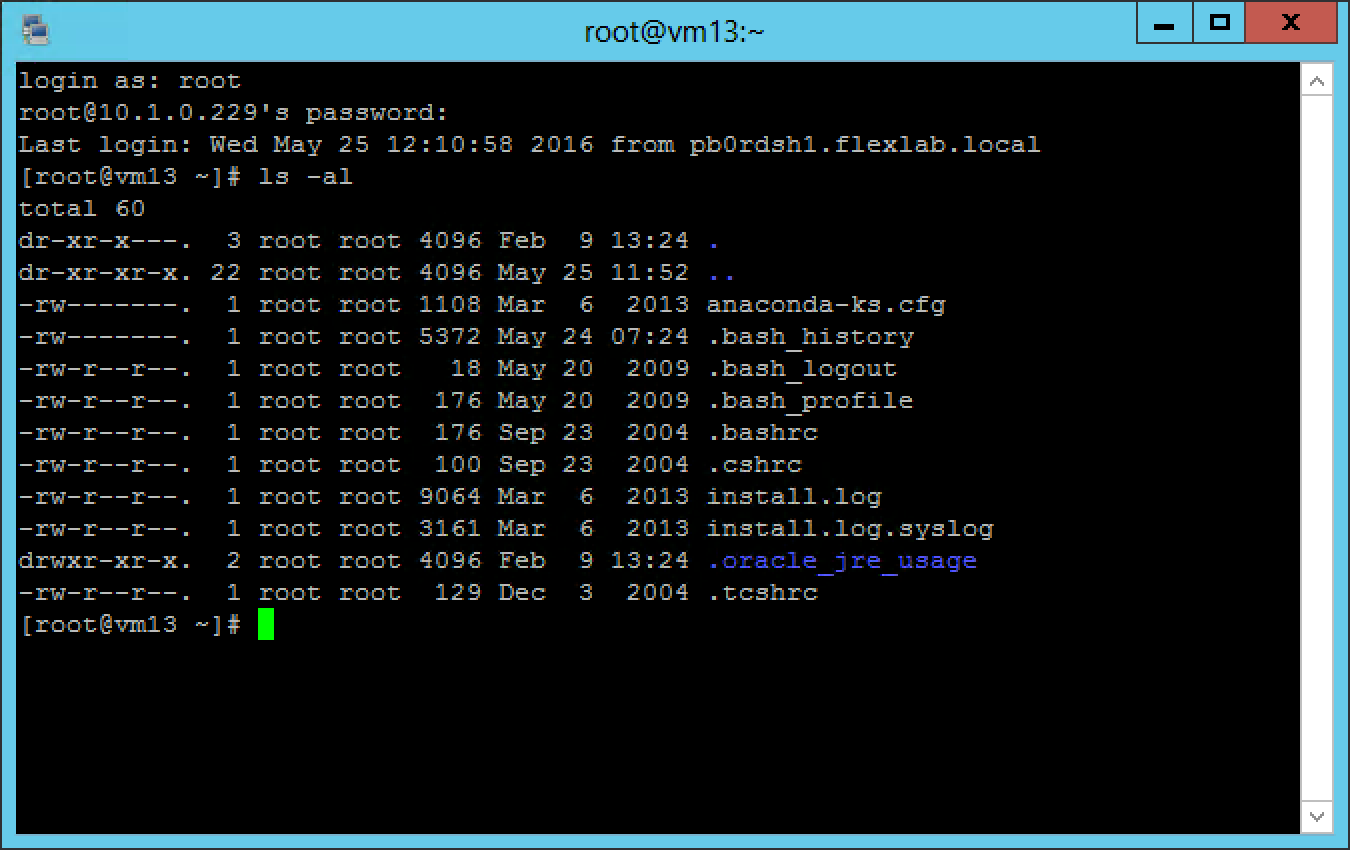
Now you can you can click again on the vRA Action “Connect using SSH”. This time you will see the following.